Documentation
Deski is a local-first desktop time tracker. It quietly notices when you're active at your computer and turns that into time blocks, charts and tags — and your activity data stays on your device. This page covers everything: installing, your account, every screen, and every setting.
Getting started
Install
- Download the Windows installer from the download page and run it.
- Windows SmartScreen may warn you on first run while builds are unsigned. Click More info → Run anyway.
- Follow the installer; Deski starts when it finishes.
Sign in
- On first launch, enter your email address. No password — Deski emails you a 6-digit code instead.
- Enter the code (it's valid for 15 minutes; you can request a new one).
- That's it. By signing in you agree to Deski's Terms & Conditions and Privacy Policy.
One account works on up to 3 devices at the same time — see Account, trial & billing for details.
The walkthrough
After your first sign-in, a short 4-step tour highlights the timer, your sessions, Insights and the sidebar. You can replay it anytime from Settings → Account → Tutorial → Start.
Account, trial & billing
Deski is not on sale yet. The trial and billing below describe how it will work at launch — right now access comes from the beta programme, which is 30 days and needs no card.
- 14-day free trial of the full app — a card is collected at checkout, but you're charged $0 during the trial.
- After the trial, Deski Pro is $9.99/month, or $99.99/year if you choose annual billing at checkout — that works out at $8.33/month, a saving of 16%. Cancel within the first 14 days and you owe nothing.
- The free trial is one per account. Cancelling mid-trial keeps your access until the trial's end date (and you can resume it before then); once it lapses, resubscribing starts billing immediately — there's no second trial.
- Payments are handled by Freemius, our Merchant of Record. We never see your card details.
- No refunds, with one exception. Deski is delivered by download, so the policy shown at checkout is no refunds — except that if you change your mind and haven't downloaded the app yet, you can ask within 14 days of purchase and we'll refund in full. After downloading, a request inside those 14 days is case by case and at our discretion; after 14 days, no refund. The free trial is the evaluation period.
- Cancel anytime in the app: Settings → Account → Cancel subscription. Your access continues until the period you've paid for ends.
- You can be signed in on up to 3 devices at once. Signing in on a 4th quietly signs out the oldest one.
- Offline use: Deski checks your subscription about once a day and keeps a signed local pass, so it works offline for up to 3 days between checks. Only your subscription status is ever checked online — your tracking data never leaves the device.
- Delete account data — when you cancel your subscription (Settings → Account), tick "Also delete my account data now" to immediately remove the little we store — your email and sign-in sessions — from our sign-in service. Otherwise it's deleted automatically after 90 days of inactivity. Your local tracking data stays on your machine, untouched and yours.
The window
- Move it by dragging the top bar; minimize / maximize / close from the top-right corner.
- The window auto-fits your screen height, including high-DPI and multi-monitor setups.
- A left sidebar switches between Stopwatch (Timer), Insights, and Settings (the gear). It can auto-hide (Settings → Appearance → Sidebar).
- The footer shows "Local only" — a reminder of where your data lives — plus your subscription status, and a small pill when an update is available.
Timer & tracking modes
Auto mode (default)
Auto records by itself — Deski watches for mouse/keyboard activity and opens a time block when you become active. The block runs until it holds a full block length of tracked time (1 to 60 minutes, 10 by default), then completes and rolls straight into the next one. A lull longer than the idle gap (10 seconds to 5 minutes, 30s by default) stops counting as tracked time and closes the block early. There's nothing to remember to press — the timer has no buttons unless you ask for them. An optional start/stop button and pause button (both off by default, Settings → Tracking → Timing) let you drive Auto by hand.
Manual mode
A plain stopwatch: Start opens a block, Stop saves it. Good for work away from the keyboard — meetings, calls, whiteboards. You can't switch modes while a manual session is running — stop it first.
If you only ever use Auto, you can hide the Auto/Manual switch entirely with Settings → Tracking → Track → Manual tracking.
The big circle shows elapsed time and a status pill (Idle, Tracking or In Progress).
Sessions & tags
- Rename a block — click its title and type.
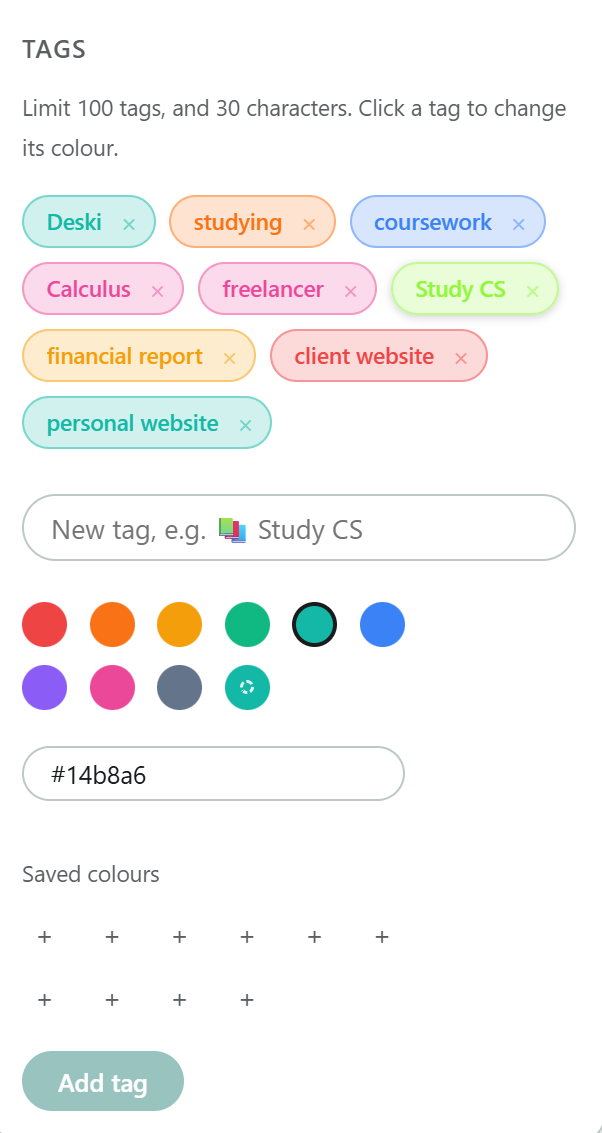
- Tag it — up to 3 tags per block, from a library of up to 100 colour-coded tags — create them in Settings → Tags, or straight from the block with + Tag (emojis welcome, e.g. 📚 Study).
- Reuse a recent label — the last three names and tags you used appear as one-click chips on the rename box and above the tag picker, so repeating yesterday's label doesn't mean retyping it.
- Delete it — the trash icon.
- Each card shows the block's clicks · moves · keys counts.
- Deleting a tag from your library removes it from any blocks using it.
Total Today sums today's tracked time. The Timer page shows your three most recent sessions; the rest live in Insights.
Insights
Activity chart
Pick a chart type (Heatmap or Bar) and granularity (by hour / day / month). The card's heading names whichever of the six views you are on — Weekly Pattern, Last 14 Days, Activity Calendar, Today by Hour, Last 7 Days or Last 6 Months — and the ⓘ beside it explains that view.
Bars are split by tag: the top 5 tags get their own colour, the rest group as "Other". Heatmaps shade by total time instead, so they carry no tag colours — just Less to More. Every chart reads your whole history, while the block lists show your most recent 50.
Weekly Pattern (Heatmap, by hour) is the one worth explaining: each row stacks every Monday, every Tuesday and so on that you have tracked, added together — not this week. So today's row can show time in hours that haven't arrived yet today. That is last week's work, not a fault. Hover any cell and it tells you the total and how many days went into it.
Efficiency Score
A ring showing focus ÷ span for today: focus is your tracked time, span runs from your first session's start to your last session's end. Breaks in between lower the score. It measures continuity, not the quality of your work.
Recent Activity
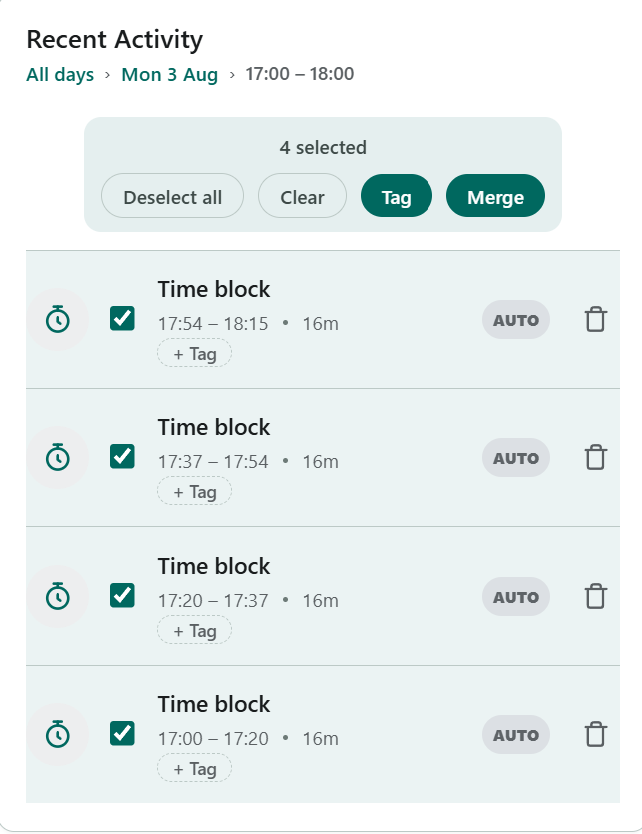
Drill down through your history: day → hour → individual blocks, with breadcrumbs. Inside a day, a By hour / All blocks toggle switches between the hours to drill into and every block in the day listed flat. On any list of blocks you can rename, tag or delete a block.
Ticking a block's checkbox opens a bar above the list that acts on the whole selection: Tag applies one tag to all of them, Rename gives them all the same name (leave the box empty to clear their names instead), and Merge fuses two or more into one — use "All blocks" when the blocks you want to merge fall in different hours. The same bar appears under Today's Sessions on the Timer page.
Settings reference
Settings opens on a list of six sections. Tap one to open it; the arrow at the top left returns to the list. Reopening Settings lands on the section you were last in. Paths below are written section → group.
| Section | Setting | What it does |
|---|---|---|
| Tracking → Track | Mouse | Track mouse activity (clicks + movement). Default on. |
| Keyboard | Count key presses (never which keys). Default off. | |
| Tracking → Timing | Auto block idle gap | How long a lull must last before it stops counting as tracked time — 10 seconds to 5 minutes. Default 30 seconds. |
| Full block length | How much tracked time a block holds before it completes and the next one starts — 1 to 60 minutes. Default 10 minutes. Shown as the timer's progress bar. | |
| Pause button | Show a pause control on the timer. Pausing keeps the block open and leaves the break out of its duration. Default off. | |
| Start/stop button in Auto | Show the start/stop button in Auto mode (always shown in Manual). Default off. | |
| Manual tracking | Show or hide the Auto/Manual switch. Off = Auto only. Default off. | |
| Appearance → Theme | Theme + Mode | 8 theme families, each in light and dark. |
| Appearance → Week | Start of week | Which day the weekday charts start on. |
| Appearance → Date | Date format | Presets or a custom pattern with live preview (tokens: D, DD, M, MM, MMM, MMMM, YY, YYYY, ddd, dddd). |
| Appearance → Sidebar | Auto-hide | Collapse the icon rail until you hover it. |
| Startup → Startup & tray | Launch at startup | Start Deski when you sign in to your computer. |
| Minimize to tray | Keep Deski in the system tray instead of the taskbar when minimized. | |
| Startup → Scheduling | Start tracking on startup | Begin tracking as soon as Deski opens, on the selected days. Default off. |
| Scheduled hours | Start and stop tracking at a set From/To time on the selected days. Default off; when on, the default window is 09:00–17:00. Once the window closes, the timer says so — a line under the clock reads Outside your scheduled hours and clears as soon as tracking resumes. | |
| Days | Which days both settings above apply to. On an unselected day Deski does not track on its own even in Auto mode — start it by hand (start/stop button, or Manual) if you need to. An overnight window belongs to the day it starts on. | |
| Tags | Tag library | Create, colour and delete tags — up to 100, names up to 30 characters. Click a tag to recolour it; the picker below applies to that tag until you click away. Only the colour is editable — a tag's name is part of what a timesheet's tamper check commits to. The ten most recent are listed with the rest behind the search box, and tags are creatable straight from a block's + Tag menu. |
| Default name & tag | A block name and tag for work you do day after day. They pre-fill: an unnamed block opens the rename box already filled in, and your default tag is offered first. Nothing is written until you confirm it. | |
| Apply them automatically | Names and tags every new block the moment it is saved, with no confirmation. Default off on purpose — a block labelled this way carries a claim you didn't look at, and because a timesheet's fingerprint is calculated partly from tags, an automatic tag is part of what the report attests to. | |
| Saved colours | Pin up to 10 colours you reuse. + saves the colour you're editing, a filled slot applies it, × clears it. | |
| Data | Back up | Write your whole history to a single SQLite file you choose. See Backup, restore & reports. |
| Restore | Replace everything in the app with the contents of a backup, after a confirmation. | |
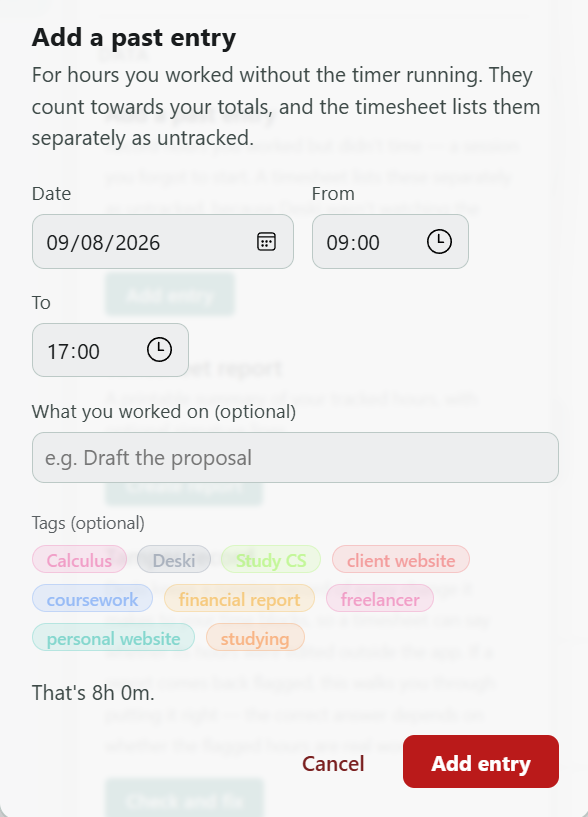
| Add a past entry | Record hours you worked but didn't time — a session you forgot to start. Listed on a timesheet as untracked. See Backup, restore & reports. | |
| Timesheet report | Printable timesheet for a date range, with optional signature lines. | |
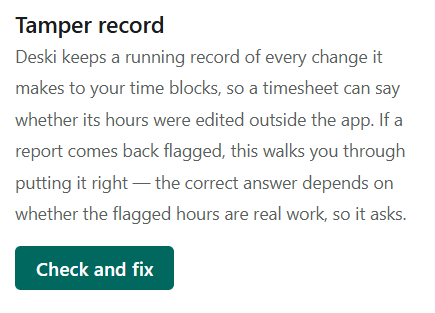
| Tamper record | Whether your time blocks have been changed outside Deski, and how to put it right if they have. | |
| Account → Account | Sign out / Cancel subscription (with optional data deletion) | Manage your sign-in and subscription. Status shows in the app footer. |
| Account → About | Version & update | Shows your version. Deski checks for a newer release on its own; when one exists a Download button appears here. |
| Account → Tutorial | App walkthrough | Replay the 5-step guided tour. |
Data & privacy
Deski is built so that tracking never becomes surveillance:
- Keyboard = a count only. Deski records that a key was pressed and when, as a running tally. It never records which keys you press.
- Mouse = activity only, no location. Clicks and movement are logged as events in time — never the pointer's position on screen.
- Everything is stored locally in a single SQLite database file in Deski's application-data folder. Your activity is never uploaded anywhere.
- Clearing really clears. Cleared data is securely wiped and the database compacted, so it's genuinely gone from disk.
The only things that touch the network are sign-in and the once-a-day subscription check. Details in the Privacy Policy.
Backup, restore & reports
Everything Deski records stays on your machine, so Settings → Data is how it gets out of the app — for safekeeping, for moving to another computer, or for a client.
Back up
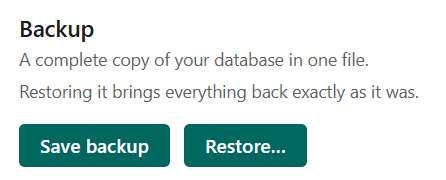
Writes your entire history to a single file you choose (a .db file). It's an ordinary SQLite database, not a Deski-only format, so any SQLite tool — DB Browser for SQLite, TablePlus, the sqlite3 command line — can open it and read your blocks and tags directly. See Query your data with SQL for the tables and some queries to start from.
⚠️ The backup isn't encrypted. Anyone who can open the file can read your tracked time, so treat it as carefully as the app's own data. A tool that offers to decrypt it (TablePlus does) will ask for a password — there isn't one; set the connection's encryption to None.
Restore
Replaces everything currently in Deski with the contents of a backup, after a confirmation. Deski verifies the file is a genuine Deski backup first and refuses anything else, so picking the wrong file leaves your data untouched. A successful restore can't be undone — back up first if the current data still matters.
Timesheet report
Pick a date range and Deski renders a printable sheet: total hours, a breakdown by tag and by day, and every block listed. Optionally add a Prepared for name and signature lines for client sign-off. Print opens the system print dialog; choose Microsoft Print to PDF (Windows) or Save as PDF (macOS) for a file rather than paper.
A block carrying several tags counts in full under each of them, so a tag's hours always reconcile against that tag's own work. The tag rows can therefore add up to more than the total — bill from the total.
Fill in Rate / hour and Currency and the By day table gains an Amount column, with a grand total at the bottom. Currency is a plain text box — $, USD, €, kr, whatever you invoice in. Every figure adds up to every other one: both totals — hours and amount — are the sum of the day rows above them, so whoever adds up a column gets exactly the total shown. Both fields can be remembered for next time (see below); leave the rate blank and no money appears at all.
The printed sheet carries its own header — Generated 2026-08-03 16:56 on the left, Deski on the right — and no browser furniture. The stamp is year-month-day on a 24-hour clock, matching the dates in the tables, because 03/08/2026 reads as 3 August to one person and 8 March to another. Deski prints with a zero page margin and supplies the margin itself, which leaves the browser nowhere to draw its own header and footer, so no timestamp, page number or localhost address lands on a sheet going to a client. (Changing Margins in the print dialog away from Default overrides this and brings the browser header back.)
Cap billable hours. If you work to a retainer or a contract ceiling, tick this and enter Max hours / week. The report gains a By week table — worked, billable, amount — and the grand total is priced on the billable figure. Each week is capped on its own, so forty hours one week and ten the next against a thirty-hour cap bills 30 + 10, not fifty capped once. Weeks follow your start-of-week setting. Hours above the cap are still printed, with a line saying how many weren't billed. With a cap on, the money moves out of the By day Amount column into the By week one: a cap applies to a whole week, and there's no honest way to pick which day inside it loses the hours.
Add signature lines puts a Prepared by and an Approved by rule at the foot of the sheet. Tick Prefill my name and today's date underneath and your own line comes out already carrying both, leaving only the signature to add by hand — the date is the sheet's generated date, so it always matches the header. The Approved by line is left blank on purpose; that one is for whoever signs the work off.
Prepared by defaults to the email you signed in with — type a name to print that instead. Ticking Remember details keeps Prepared for, Prepared by, Rate / hour, Currency and your signature-line settings for next time, so a client you bill several times a month is typed once, your rate is never retyped, and the sheet keeps the shape you set it to. It's off by default, and unticking it erases what was stored.
The tamper-check badge
Deski keeps a running record of every time block as it writes it, each entry sealed against the one before. When you print a timesheet it re-checks every block in the range against that record and prints one of three results at the top of the sheet:
- No changes made outside Deski — every block in the range still matches what Deski recorded.
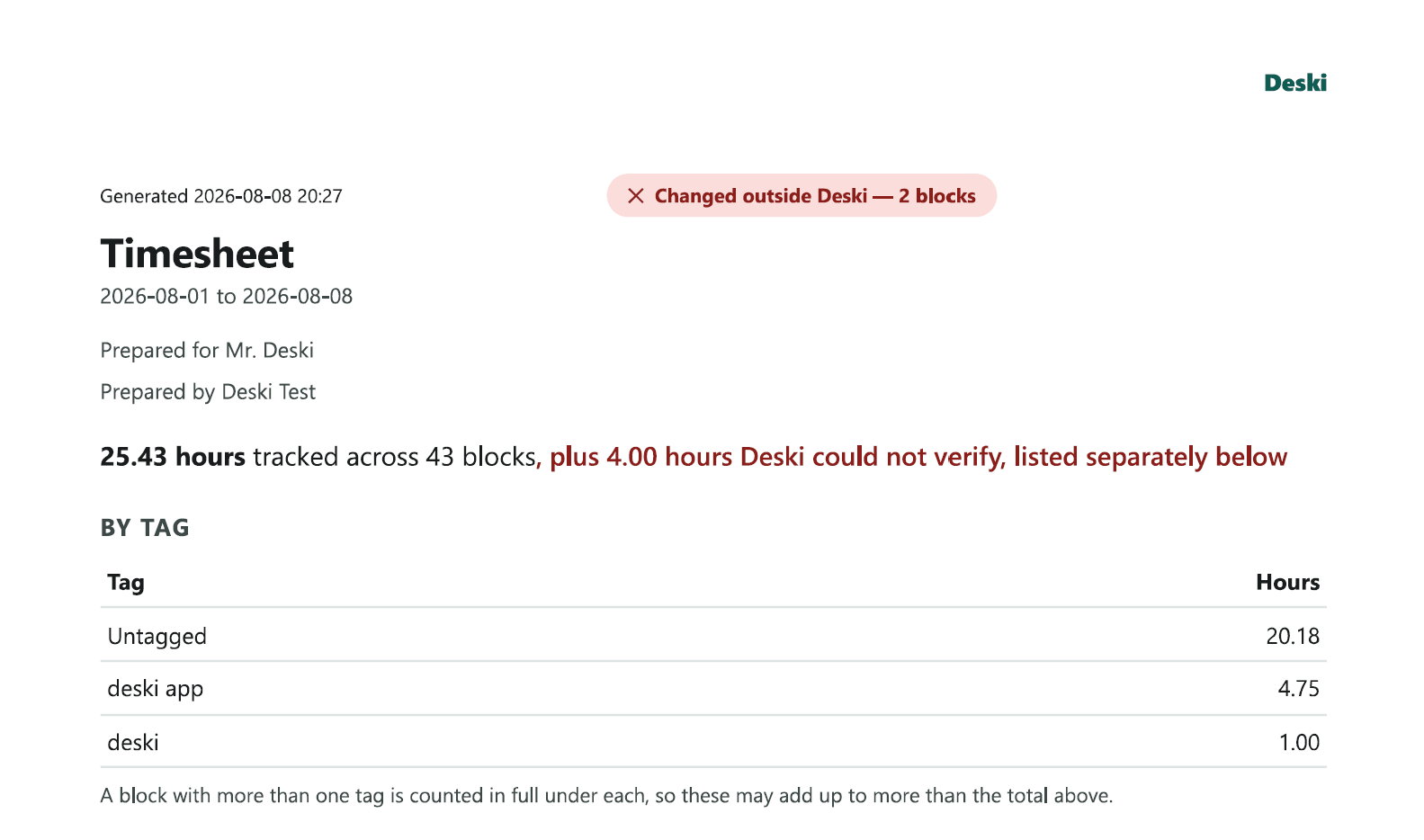
- Changed outside Deski — at least one block does not, and the sheet names which.
- Not covered by tamper checking — Deski cannot tell for that period. This is not a pass. If a sheet you expected to be green comes back grey, something has happened to the file.
What the badge claims, exactly. A green tick means the blocks in that range have not been casually edited since Deski started recording — someone opening the database in a spreadsheet tool and changing a number gets caught. It does not mean the hours were worked, and it cannot: no software running on your own machine can prove that to somebody else. Anything already in the file when you upgraded is taken as genuine, because the record has to start somewhere. Deski's own Back up and Restore move the blocks and the record together, so restoring a backup verifies clean.
Two totals, and why a flagged sheet is still sendable
When something is flagged, the sheet stops having a single total. Hours that passed the check are totalled as verified and invoiced; hours that failed are listed underneath with the reason, and are deliberately not added to that total.
This is the part worth knowing before you need it: you are not blocked from billing, and you do not have to fix anything first. Send it. The client pays the total that is certain and can ask about the rest, which is a conversation rather than an accusation. A sheet that quietly dropped the disputed hours, or quietly included them, would be worse for both of you.
Where a sheet's hours came from
Every timesheet breaks its hours into three kinds, so whoever reads it can weigh them:
- Automatic — recorded from keyboard and mouse activity.
- Manual — timed by hand with the stopwatch, so Deski watched the clock even though you started it.
- Untracked — added afterwards with Add a past entry. These count towards your totals and are billable; Deski simply wasn't watching when they happened, and the sheet says so rather than pretending otherwise.
If a report is flagged
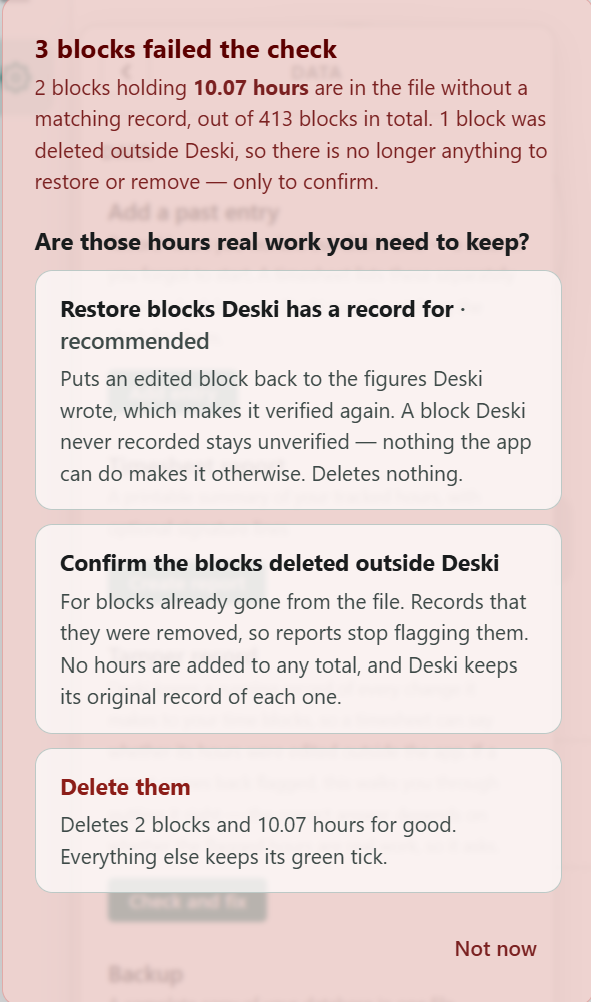
Settings → Data → Tamper record shows what failed and what each fix costs before you choose. It asks one question first — are the flagged hours real work you need to keep? — because that is what decides the answer.
- Restore puts a block back to the figures Deski originally recorded. It can only write back what the record already holds, so it can never invent hours. A block Deski has no record of is left exactly where it is, not removed — it stays on the sheet, listed and not invoiced.
- Confirm the blocks deleted outside Deski, for hours already gone from the file, where there is nothing left to restore or remove. It records that they were deleted so reports stop flagging them. It does not bring the hours back.
- Delete removes the flagged blocks and their hours permanently. This is the only option that destroys anything, and it is never the default — if a whole history is flagged, deleting would erase your own work.
Almost everything flagged at once usually means the database file itself was damaged or rebuilt — by disk trouble, a repair tool, or a sync service reconciling two copies — rather than anyone editing blocks one by one. Restore is the answer there; deleting is not.
Query your data with SQL
Deski stores everything in a plain SQLite database, so you're never limited to the views the app happens to offer. If you want billable hours per client per month, or your quietest hour of the day, you can just ask.
Open a backup, not the live file
Take a backup first (Settings → Data → Back up) and point your SQL client at that. Two reasons, and both matter:
- Deski holds the live database open while it's running. Recent activity may still be sitting in a write-ahead log, so an outside tool can show you a slightly stale picture — or trip over the app mid-write.
- A backup can't be broken by a typo. One mistyped
UPDATEorDELETEagainst the live file is permanent — Deski keeps no cloud copy, and there is no undo. Query a copy and the worst case is you take another one.
Treat the backup as read-only. Editing it and restoring it is not a supported way to change your data.
Connecting with TablePlus
- Create a new connection and choose SQLite.
- For Database file, pick the
.dbbackup you just saved. - Set Encryption to None. TablePlus offers to decrypt SQLCipher databases and will ask for a password — Deski's file isn't encrypted, so there isn't one.
- Connect, then open a SQL tab and query away.
Anything that speaks SQLite works the same way — DB Browser for SQLite is free and cross-platform, and the sqlite3 command line is already on macOS and most Linux systems.
⚠️ The backup isn't encrypted, so anyone who can open the file can read your tracked time. Keep it somewhere you'd be comfortable keeping a timesheet.
The tables
| Table | What's in it |
|---|---|
time_blocks | One row per tracked session — this is the table you want. start_ts, end_ts, duration_secs (active time, idle already removed), idle_secs, mode (auto or manual), name, note, the click_count / move_count / key_count activity tallies, and entered (1 for hours you added by hand rather than timed). |
tags | Your tags: id, name, color. |
block_tags | Which tags are on which block (block_id, tag_id). A block can carry several. |
mouse_events | Raw activity: ts and kind (click or move). No screen coordinates — there is no x or y column to query. |
key_events | Raw key presses: ts only. No key column — Deski records that a key was pressed, never which one. |
block_events | The tamper record: one append-only row per change Deski makes to a block, each sealed against the one before. This is what the badge on a timesheet is checked against. Read it, don't write it — editing or deleting rows here is itself what the check is looking for, and will flag your own reports. |
categories, meta | Internal bookkeeping. Leave them alone. |
Timestamps are in milliseconds, not seconds — the usual first stumble. Divide by 1000 before handing one to a date function: datetime(start_ts/1000, 'unixepoch', 'localtime').
duration_secs is active time with idle already subtracted, so it's the number to bill from. Summing end_ts - start_ts instead gives you wall-clock, which is a different (larger) figure.
Queries to start from
Hours per day, newest first:
SELECT date(start_ts/1000, 'unixepoch', 'localtime') AS day,
       ROUND(SUM(duration_secs)/3600.0, 2)           AS hours
FROM time_blocks
GROUP BY day
ORDER BY day DESC;
Hours per tag:
SELECT t.name,
       ROUND(SUM(b.duration_secs)/3600.0, 2) AS hours
FROM time_blocks b
JOIN block_tags bt ON bt.block_id = b.id
JOIN tags t        ON t.id        = bt.tag_id
GROUP BY t.name
ORDER BY hours DESC;
As in the timesheet report, a block with several tags counts in full under each, so these rows can add up to more than your actual total. Bill from the total, not the sum of the tags.
One client, one month, with the tags on each block:
SELECT datetime(b.start_ts/1000, 'unixepoch', 'localtime') AS started,
       ROUND(b.duration_secs/3600.0, 2)                    AS hours,
       b.name,
       GROUP_CONCAT(t.name, ', ')                          AS tags
FROM time_blocks b
LEFT JOIN block_tags bt ON bt.block_id = b.id
LEFT JOIN tags t        ON t.id        = bt.tag_id
WHERE b.start_ts >= strftime('%s', '2026-08-01') * 1000
  AND b.start_ts <  strftime('%s', '2026-09-01') * 1000
GROUP BY b.id
ORDER BY b.start_ts;
Which hour of the day you actually work:
SELECT strftime('%H', start_ts/1000, 'unixepoch', 'localtime') AS hour,
       ROUND(SUM(duration_secs)/3600.0, 2)                     AS hours
FROM time_blocks
GROUP BY hour
ORDER BY hour;
Clearing data
- Delete a single block — the trash icon on its card.
- Clear all (Timer page) — today's blocks, with confirmation.
- Clear all (Insights page) — all history, with confirmation.
⚠️ Deletions cannot be undone. Deski keeps your data local with no cloud backup, so cleared data can't be recovered — it's securely wiped from disk. If you might want it later, take a backup first; restoring one is the only way back.
Updates
When a newer version exists, a small pill appears in the app footer with a download link. A Download button also appears in Settings → Account → About whenever a newer version is available. Updates are installed by running the new installer — your data is untouched.
Troubleshooting
No block appeared in Auto mode
A block opens only once activity is detected. If you were idle, no block is created. Check that mouse and/or keyboard tracking is enabled in Settings → Tracking → Track.
The sign-in code never arrived
Check spam, and that the address is typed correctly. Codes expire after 15 minutes — request a fresh one from the sign-in screen.
"No active subscription" after I subscribed
Click "I've subscribed — check again" on that screen — it re-checks immediately. Make sure you signed in with the same email you used at checkout.
I was signed out unexpectedly
You may have signed in on more than 3 devices — the oldest session is signed out automatically. Just sign in again.
SmartScreen blocks the installer
Expected while builds are unsigned: click More info → Run anyway.
Support
Questions, bugs, ideas — email [email protected].